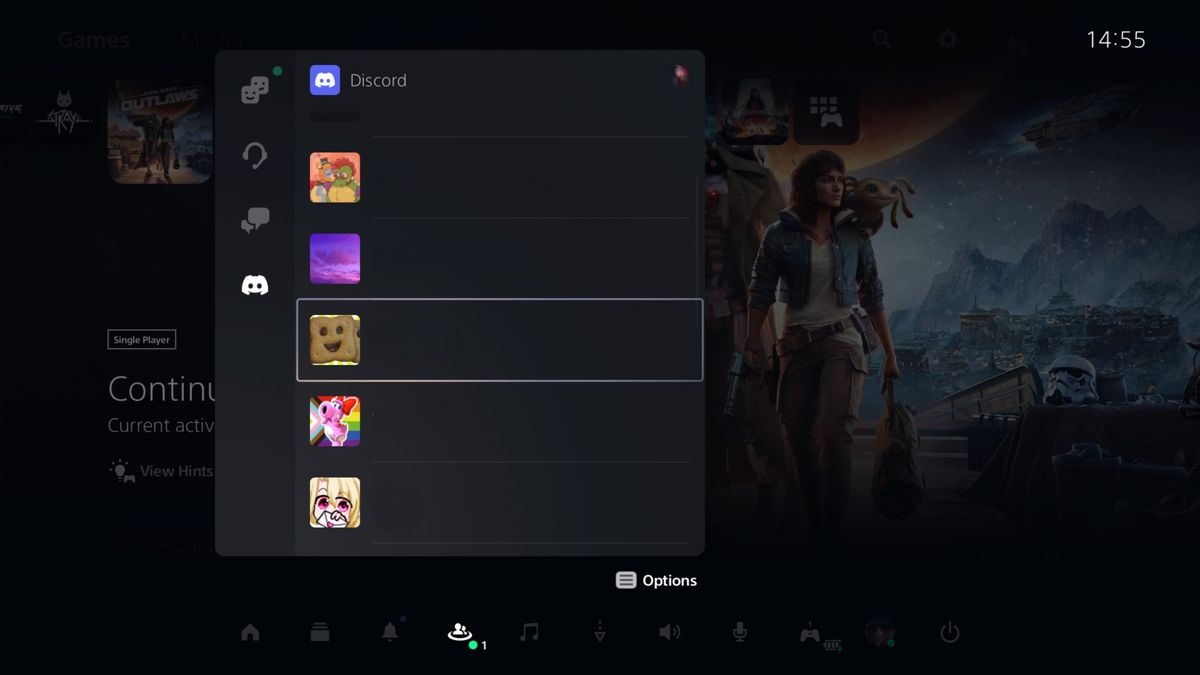
Communicating effectively while gaming has become essential for players, especially when diving into multiplayer experiences on platforms like PlayStation 5 (PS5). Discord, a popular chat application, offers a seamless way to stay in touch with friends while enjoying your favorite games. Now that Discord is fully compatible with Sony’s latest console, understanding how to set it up on your PS5 is crucial for an enriched gaming experience.
To begin, it’s important to note that you must have a Discord account before linking it to your PS5. If you don’t already have an account, you can easily create one by visiting the Discord website on your PC, laptop, or mobile device. The registration process is straightforward, free, and typically only takes a few minutes. However, it’s essential to remember that users must be at least 13 years old to use Discord, or older depending on local laws.
Tools and Requirements
To use Discord on your PS5, you will need:
- A PS5, PS5 Slim, or PS5 Pro (the PS5 Pro is set to release in November 2024).
- Access to a PC, laptop, or mobile device for account linking.
- The latest software update for your PS5.
Step-by-Step Guide to Set Up Discord on PS5
-
Access Settings: Start by navigating to the home screen of your PS5. Click on the gear icon in the top right corner to enter the Settings menu.
-
Select Users and Accounts: In the Settings menu, locate and select "Users and Accounts." Your avatar will be displayed next to this option.
-
Linked Services: Once you’re in the Users and Accounts menu, look for the "Linked Services" tab. This section allows you to connect various services to your PS5.
-
Choose Discord: From the list of linked services, select Discord. A prompt will appear with information about the linking process.
-
Sign In to Your Discord Account: Click the link button to proceed to the sign-in options. You can either:
- Use a PC or laptop to visit the Discord activation page, sign in, and enter the code displayed on your PS5.
- Scan the QR code on your screen with your mobile device. If you choose this method, ensure you have the Discord app installed and navigate to the in-app settings to scan the code.
- Alternatively, you can sign in directly from your PS5 using the browser option. While this might be less convenient due to the on-screen keyboard, it’s a viable method if no other devices are available.
- Complete the Linking Process: Once you successfully sign in, you’ll need to authorize the connection. Your Discord account will now be linked to your PSN account.
Managing Discord on PS5
After setting up Discord on your PS5, you might have questions regarding its management:
- How to Start Discord on PS5: You can access Discord directly from your PS5 once it’s linked.
- Unlinking Discord: If you ever wish to remove Discord from your PS5, simply return to the Linked Services menu in the account management section of Settings, select Discord, and follow the prompts to unlink your account.
- Using the Discord App: You can also link your PS5 to Discord via the Discord app on your PC or mobile. Navigate to User Settings, select Connections, click “Add,” and then choose the PlayStation logo. Sign in with your PSN details to link your account.
Adjusting Your Discord Status
By default, Discord displays your current PSN status on your profile, which includes details about what game you are playing. If you prefer not to share this information, you can easily turn it off:
- Open the Discord app on your PC or mobile device.
- Go to the Connections tab in User Settings.
- Uncheck the options for "Display on Profile" and "Display PlayStation Network as your status."
Conclusion
Now that you have all the necessary steps to set up Discord on your PS5, you can enhance your gaming experience by connecting with friends effortlessly. As you dive into multiplayer games, consider exploring some of the best co-op and multiplayer titles available on the PS5, such as “Helldivers 2,” “Minecraft,” “Gran Turismo 7,” and “Call of Duty: Modern Warfare 3.”
For an even better experience, investing in a quality headset can significantly improve your communication quality and overall gaming enjoyment. With the right tools and setup, you’re ready to take your gaming sessions to the next level while maintaining seamless communication with your friends.
Leave a Reply