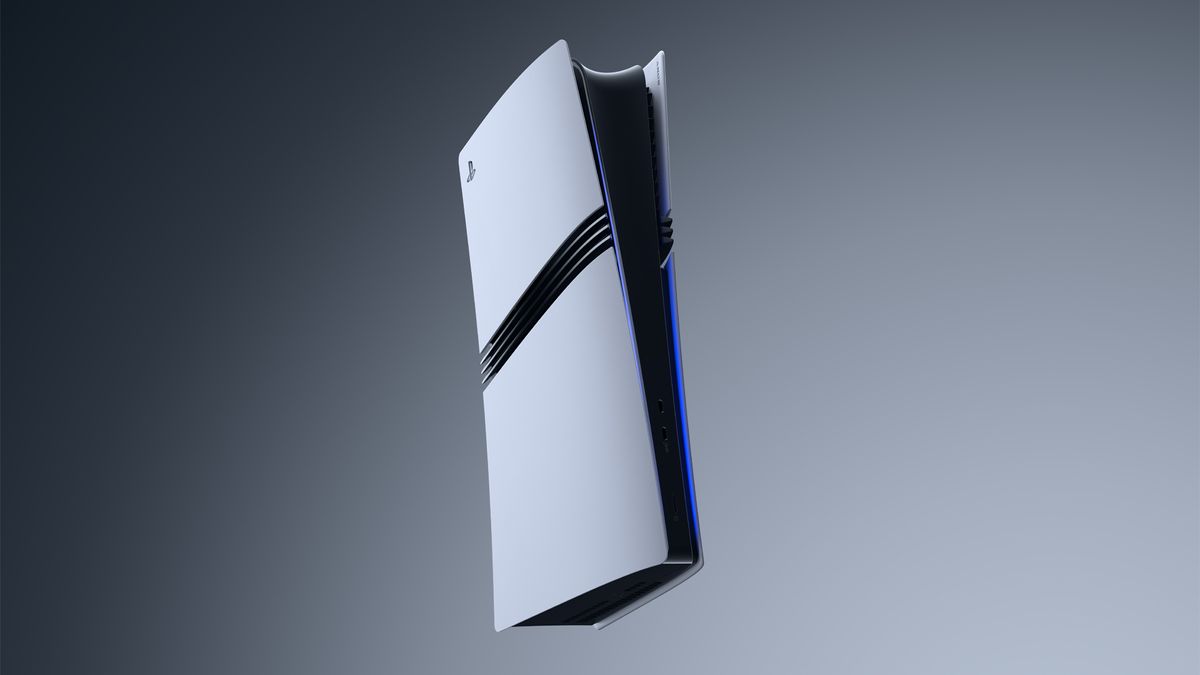
Setting up a PlayStation 5 Pro (PS5 Pro) is an exciting experience for any gaming enthusiast. With its advanced hardware and features that enhance gameplay, the PS5 Pro is designed to provide an unparalleled gaming experience. Whether you’re upgrading from an older console or diving into gaming for the first time, this step-by-step guide will ensure a smooth setup process.
Unboxing Your PS5 Pro
Before diving into the setup, it’s crucial to take a moment to familiarize yourself with the contents of the PS5 Pro box. Inside, you will typically find:
- The PS5 Pro console
- DualSense wireless controller
- Power cord
- HDMI cable
- USB charging cable
- Quick start guide
- Safety information
Ensure you have all parts before proceeding. Additionally, it’s advisable to choose a well-ventilated area for your console to prevent overheating during intense gaming sessions.
Step 1: Connecting to Power and Display
-
Position Your Console: Place the PS5 Pro vertically or horizontally, depending on your space and preference. Make sure there’s enough clearance around the console for airflow.
-
Connect the Power Cable: Plug the power cable into the back of the console and connect it to a power outlet.
-
HDMI Connection: Connect one end of the HDMI cable to the HDMI OUT port on the PS5 Pro and the other end to your TV or monitor. For optimal performance, ensure your display supports HDMI 2.1, which can handle 4K gaming at 120Hz.
- Turn On Your TV: Switch your TV to the HDMI input you used for the PS5 Pro.
Step 2: Initial Setup
Once everything is connected, it’s time to power on the console.
-
Power On the Console: Press the power button on the front of the PS5 Pro. You should see the console light up, and the fan will engage briefly.
-
Controller Syncing: To sync your DualSense controller, connect it to the console using the USB charging cable. Press the PlayStation button in the center of the controller, and it should pair automatically.
- Select Language and Region: Follow the on-screen prompts to select your preferred language and region. This step is crucial for ensuring the console’s interface and settings are tailored to your location.
Step 3: Internet Connection
An internet connection is essential for downloading games, updates, and accessing online features.
-
Choose Connection Type: You can connect via Wi-Fi or an Ethernet cable. For the best performance, a wired connection is recommended.
- Network Setup: If using Wi-Fi, select your network from the list and enter the password. The console will test the connection to ensure it’s successful.
Step 4: Software Updates
Keeping your console updated is vital for accessing the latest features and security patches.
-
Check for Updates: After connecting to the internet, the PS5 Pro will automatically check for software updates. If an update is available, follow the on-screen instructions to download and install it.
- Sign in to PlayStation Network (PSN): If you have an existing PlayStation account, sign in. If not, you can create a new account. This account will allow you to purchase games, access online features, and use services like PlayStation Plus.
Step 5: Customize Your Settings
Now that your PS5 Pro is connected and updated, customize your settings for an enhanced gaming experience.
-
Display Settings: Navigate to Settings > Screen and Video to adjust the resolution and HDR settings. The PS5 Pro supports 4K resolution and can upscale games for enhanced visuals.
-
Audio Settings: Go to Settings > Sound to configure audio output. If you have a surround sound system, ensure that the audio output is set to match your setup.
- Controller Settings: Customize the controller settings based on your preferences, such as adjusting the vibration intensity or configuring button mappings.
Step 6: Game Installation
With everything set up, you can start installing games.
-
Physical Games: Insert a game disc into the console, and it will automatically start installing.
- Digital Games: Access the PlayStation Store from the home screen to purchase and download games directly to your console.
Step 7: Explore Features
The PS5 Pro comes packed with features that enhance your gaming experience:
- Game Library: Organize your games and access them easily from the home screen.
- Activity Cards: These provide quick access to game content and objectives.
- Remote Play: Play your games on other devices using the Remote Play feature, allowing you to game on the go.
Conclusion
Setting up your PS5 Pro can be a straightforward process when following these steps. From unboxing to customizing your settings, each stage is designed to enhance your gaming experience. Embrace the power of the PS5 Pro and dive into the world of high-definition gaming, where every detail is brought to life. Whether you’re playing the latest blockbuster titles or exploring indie gems, your setup is now ready to deliver an immersive gaming experience. Happy gaming!
Leave a Reply