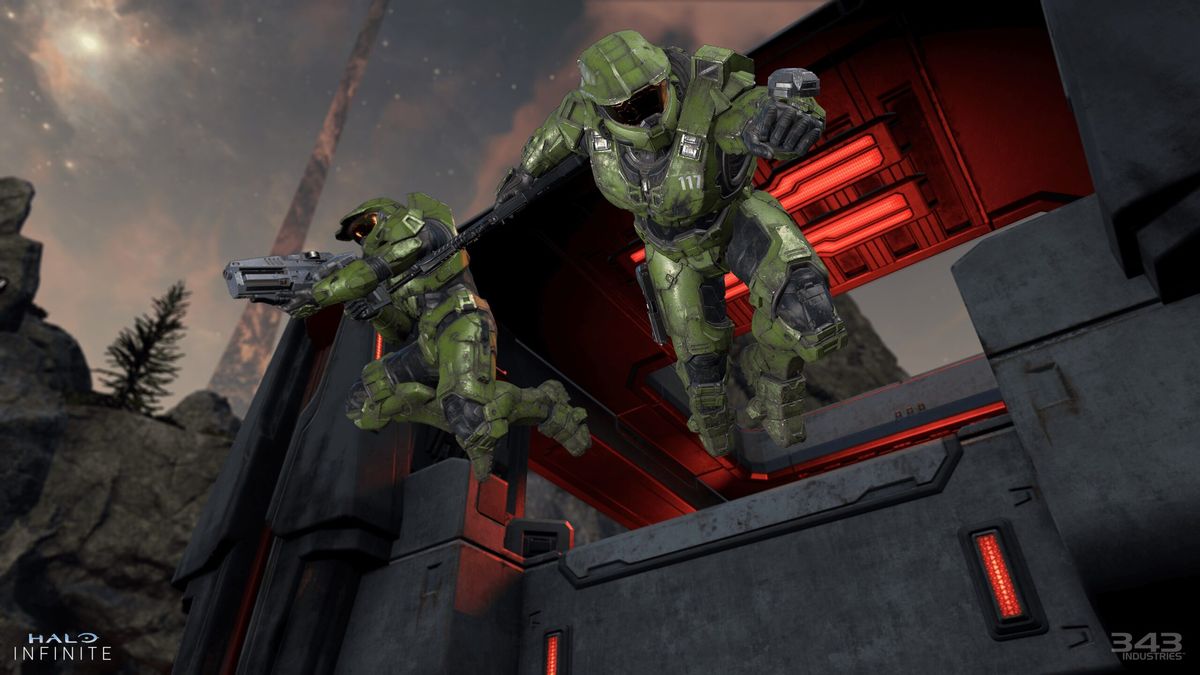
Sharing your gaming library with friends and family on Xbox can enhance your gaming experience. Whether you own the latest Xbox Series X, Xbox Series S, or even the older Xbox One, the process of gamesharing is straightforward and user-friendly. This feature allows you to grant access to your digital game collection, including your Xbox Game Pass subscription, without the need for any specialized equipment or software. All you need is your Xbox console and the Microsoft accounts you wish to share with.
Understanding Xbox Gamesharing
Before diving into the step-by-step guide, it’s essential to understand the limitations of Xbox gamesharing. You can only share your digital games on one console at a time, and you are restricted to changing your chosen console for sharing purposes up to five times per year. This means that careful planning is crucial for maximizing your gamesharing experience.
Tools and Requirements
To get started with gamesharing, you will need the following:
- An Xbox Series X, Xbox Series S, or Xbox One
- Two (or more) Microsoft accounts
Step-by-Step Guide to Gameshare on Xbox
1. Boot Up Your System and Add a Second Profile
- Start by powering on your Xbox console.
- Press the Xbox button on your controller to open the dashboard menu.
- Navigate to the "Profile & System" tab, then select "Add or Switch."
- If you don’t have an account set up yet, choose “Add New” and enter the required details. If you’re sharing games with a friend, you will need their login information.
2. Select the Account You Want to Share Games From
- After adding the second profile, choose the account from which you wish to share games.
- If you are accessing a friend’s library, ensure that their account is logged in.
- Press the Xbox button again to return to the "Profile & System" tab.
3. Open Settings and Find “My Home Xbox”
- Select the “Settings” option to access the main settings menu.
- Navigate to the "General" tab and then select "Personalization."
- Scroll right to find “My Home Xbox.” This option will allow you to choose your home console for game sharing.
4. Set the Console as Your Home Xbox
- In the My Home Xbox menu, you will see a checkbox to designate your console as the home Xbox.
- Read the provided information carefully, as it explains what sharing your home Xbox entails.
- After making your selection, you may be prompted to enter your password for security purposes. Once completed, your console is now set as the home Xbox, and you can access the shared games.
Frequently Asked Questions
Can You Share Xbox Games?
Yes, sharing Xbox games is simple by designating your console as your home Xbox. You will need access to the console and the account details to complete the process.
Can You Share Xbox Game Pass?
Absolutely! In addition to sharing individual games, you can also share your Xbox Game Pass subscription with other users on your home console. This can be an economical way to enjoy a wide variety of games, splitting the cost among friends or family members.
Statistics to Consider
When discussing gamesharing, it’s worth noting the increasing popularity of digital gaming. According to recent statistics:
- Over 80% of gamers on Xbox are now purchasing digital copies of games, which highlights the importance of being able to share these titles.
- The Xbox Game Pass boasts over 25 million subscribers, showcasing how valuable shared subscriptions can be for gamers looking to save money.
Conclusion
Gamesharing on Xbox is not just a convenient feature, but a way to foster community and collaboration in gaming. By following the outlined steps, you can easily share your games and Game Pass subscriptions with friends and family, enriching everyone’s gaming experience. Whether you’re looking for new titles to play or want to explore popular games together, gamesharing opens the door to countless gaming adventures. If you’re interested in discovering great games to share, consider checking out guides on the best Xbox Series X and Xbox One games. Happy gaming!
Leave a Reply