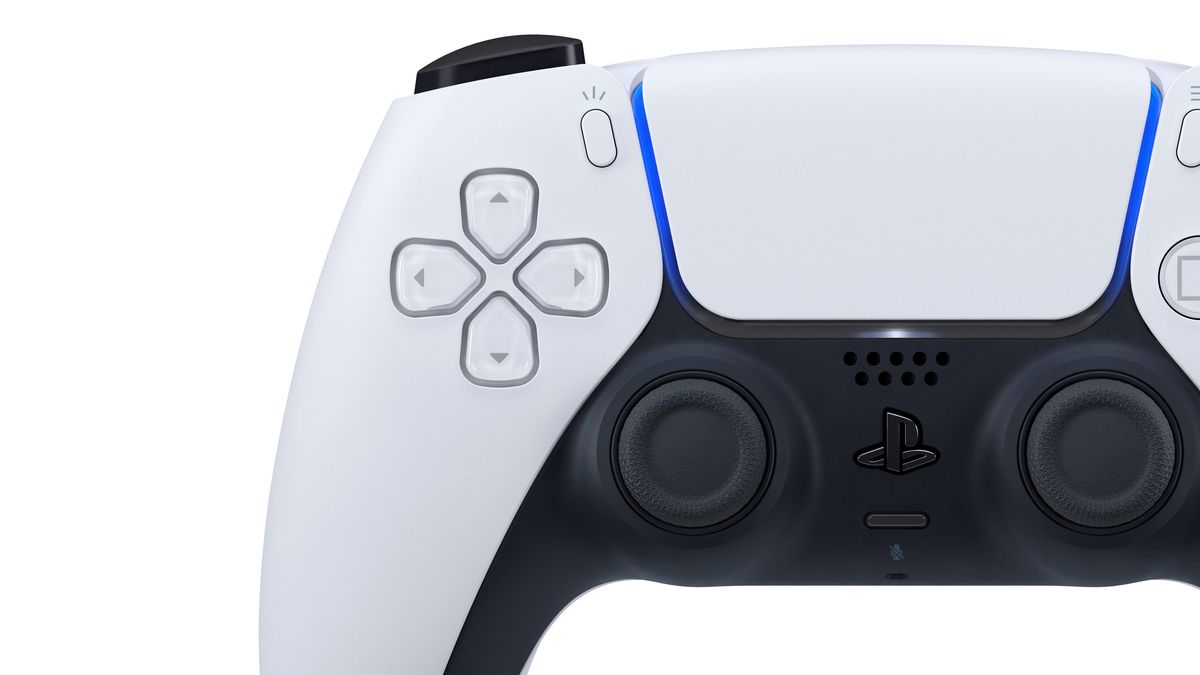
Gaming enthusiasts seeking to elevate their experience beyond the traditional mouse and keyboard setup can turn to the PS5 DualSense controller. This advanced controller offers a range of features that enhance gameplay, making it a top choice for PC gamers who appreciate the tactile feedback and comfort of a gamepad. Here’s a comprehensive guide on how to connect and optimize your PS5 DualSense controller for use on a PC, along with insights into its features and limitations.
The Appeal of the DualSense Controller
The PS5 DualSense controller sets a new standard in gaming peripherals. With features like adaptive triggers and haptic feedback, it provides an immersive experience that can significantly enhance gameplay. While these features are fully realized on the PS5, many PC games are beginning to adopt support for them, providing players with an opportunity to enjoy a more dynamic experience.
Advantages of Using a Controller on PC
Switching to a controller can offer numerous benefits:
- Enhanced Comfort: Controllers allow for a more relaxed posture, enabling players to sit back and enjoy games without being hunched over a desk.
- Precision Control: Analog sticks provide smoother and more nuanced control compared to a mouse, particularly in racing and sports games.
- Quick Commands: Controllers often allow for quicker access to commands, which can be crucial in fast-paced games.
Connecting the DualSense Controller to Your PC
The PS5 DualSense controller can connect to your PC via wired or wireless methods. Here’s how to set it up:
Wired Connection
To use the DualSense controller wired, you’ll need a USB-C to USB-A cable. The DualSense uses a USB-C port, a change from the micro USB used by its predecessor, the DualShock 4.
- Plug the USB-C end into the controller and the USB-A end into your PC.
- Windows should automatically detect the controller, and it will be ready for use.
| Connection Type | Requirements | Setup Steps |
|---|---|---|
| Wired | USB-C to USB-A cable | Plug both ends in and wait for Windows to detect it |
| Wireless | Bluetooth capability on PC | Pair the controller via Bluetooth (details below) |
Wireless Connection
For a wireless experience, ensure your PC has Bluetooth capability. If not, a Bluetooth dongle can be purchased inexpensively.
- Put the controller in pairing mode: Hold the PS button and the Create button until the light bar starts flashing.
- Open Bluetooth settings on your PC: In Windows 10, click the speech bubble icon in the taskbar to access the Action Center. Click on ‘Bluetooth’ and select ‘Add Bluetooth or other device.’
- Select ‘Wireless Controller’ from the list of devices.
- If prompted, enter the pairing code 0000.
Once connected, the DualSense controller should be ready for use across various games.
Configuring the DualSense Controller in Steam
Steam is the most popular platform for PC gaming, and it offers excellent support for the DualSense controller. To configure it:
- Launch Steam and navigate to the top left corner.
- Click Steam > Settings > Controller > General Controller Settings.
- Connect your DualSense controller either via wired or wireless methods.
- Once detected, you may be prompted to configure the controller. If not, select it from the device list.
- Configure the buttons as desired, ensuring that triggers are set as analog inputs.
At this point, you can also enable PlayStation Configuration Support to allow the use of PlayStation button prompts in supported titles.
Limitations of the DualSense on PC
While the DualSense controller offers many advantages, there are some limitations to be aware of:
- Adaptive Triggers and Haptic Feedback: Not all PC games currently support these features. As of now, only a select number of titles have been optimized for full DualSense functionality. Always check individual game specifications to confirm compatibility.
- Audio Jack Limitations: The audio jack on the controller is not supported on PC. As a workaround, consider plugging your headphones directly into your PC or investing in wireless headphones.
Conclusion
The PS5 DualSense controller is an excellent choice for PC gamers looking to enhance their gameplay experience. With its ergonomic design, precision control, and increasingly supported features, it stands out among the best controllers available today. Whether you prefer a wired or wireless connection, setting up the DualSense on your PC is straightforward, especially with platforms like Steam providing robust support. As more games adopt the innovative technologies of the DualSense, the gaming experience will only continue to improve, making it a worthwhile investment for any serious gamer.
Leave a Reply